



Foresight AI TPM
Foresight includes an AI-powered Technical Program Manager (TPM) that helps you manage your reliability program. The TPM tracks reliability health across your services, generates narrative weekly reports with recommendations, manages commitments, and sends Slack notifications with updates.
How it works
Foresight TPM reviews your Gremlin environment, compares it against your program goals, and creates a detailed report of your current reliability posture. Based on this report, it provides suggestions for how you can better meet your goals, reduce your reliability risks, and increase your score.
Foresight TPM analyzes your Gremlin environment by:
- Collecting a snapshot of each service in your Gremlin team: its reliability score, test results (with Reliability Intelligence diagnoses), Health Checks, dependency test coverage, and test schedule.
- Comparing the current snapshot against the previous snapshot to identify improvements and regressions.
- Generating a narrative report and posting it to an assigned Slack channel.
- Suggesting actionable commitments, such as enabling autoscaling for a service that failed its CPU and memory scalability tests. This includes assigning a specific owner, course of action, and deadline based on the severity of the test.
Creating a new TPM report
To create a new TPM report:
- Log into Gremlin Foresight.
- Select Program in the top nav bar, then use the Team Selection drop-down to select the team you want to generate the report for.
- If this is your first time creating a TPM configuration for this team, click Create Configuration.
- Enter a Program Name. This can be any name of your choice. By default, it will be “(Your team name)’s Reliability Program.”
- Enter one or more Goals for the program. Goals guide the TPM on the services and reliability tests it should prioritize, the recommendations it should offer, and the urgency it should put behind its recommendations. You can add more goals by clicking on the + icon, or remove a goal by clicking the delete icon.
- If your goal is to improve reliability across your team, you can leave the default recommendation of “Overall program RM score should trend upward quarter over quarter.”
- If you want to send the report to a Slack workspace, you can enter a Slack webhook URL. We recommend creating a Slack app named “Gremlin Foresight TPM,” enabling “Activate Incoming Webhooks,” and entering the URL of the Webhook in this field. For details on how to configure webhooks in Slack, see their documentation.
- Optionally, change the Report Period, or the number of previous days the report will cover. This defaults to 14, or two weeks.
- Optionally, change the Report Day of the Week if you want the report week to begin on a day other than Monday. Days are numbered from 1 to 7 starting on Monday, and default to Monday (day 1). For example, to start the week on Sunday, enter 7 in this box.
- Click Submit to create your configuration.
- Click Generate Report.
The report will take some time to generate. Once it’s ready, the page will automatically refresh. If you enter a Slack webhook URL, Gremlin will automatically send the finished report to Slack.
Editing a TPM configuration
If you want to edit your TPM configuration:
- Log into Gremlin Foresight.
- Select Program in the top nav bar, then use the Team Selection drop-down to select your team.
- Click on the pen icon next to TPM Configuration.
- Make your preferred changes (see step 3 of Creating a new TPM report for details on each field).
- Click Submit to save your changes.
Viewing and managing commitments
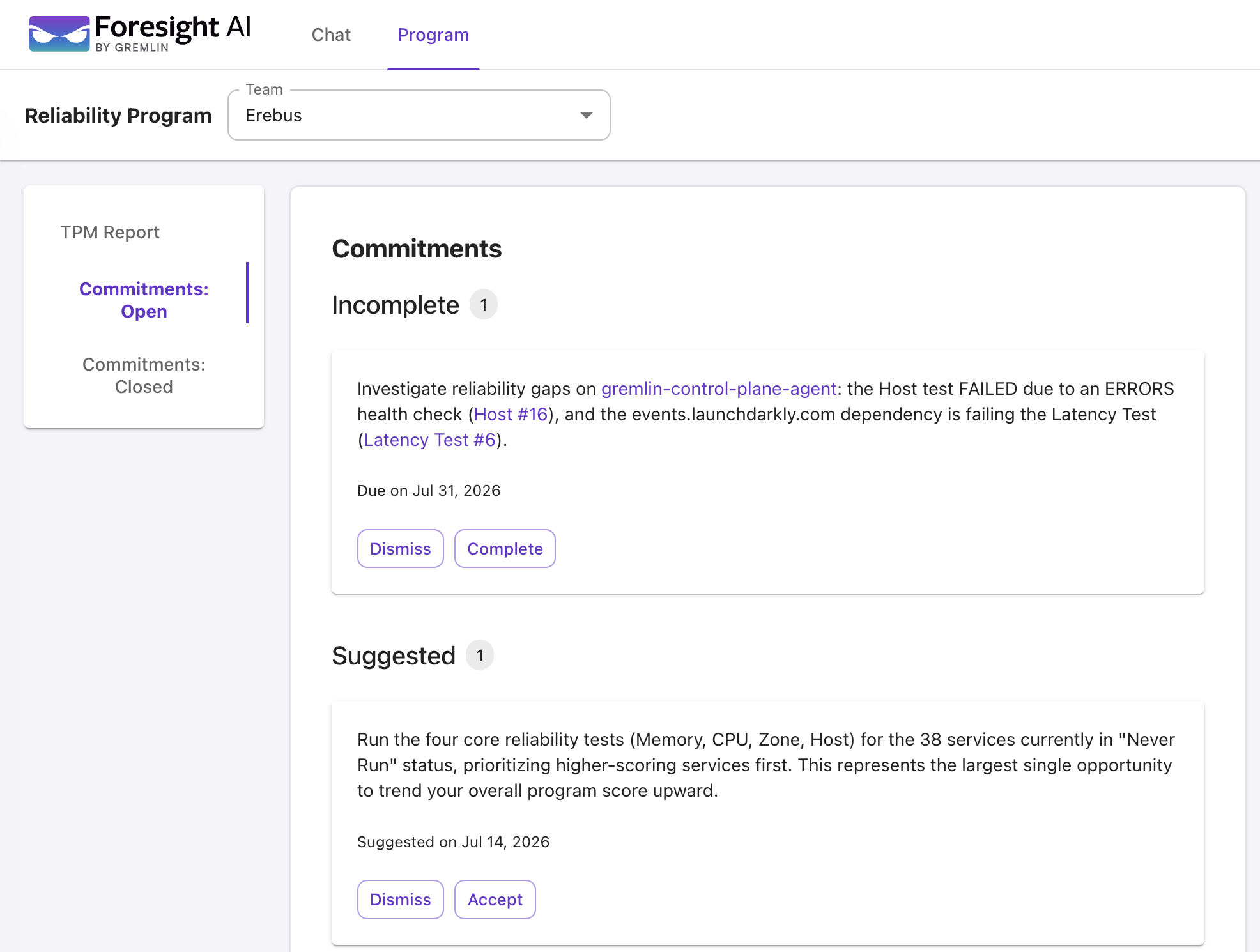
Foresight TPM provides recommendations for improvements in the form of commitments. A commitment is an individual action item designed to help you move towards your TPM goals. For example, if your goal is to improve your overall RM score, Foresight may create commitments for running tests that haven’t been run yet, or highlighting Detected Risks that are still at-risk.
How commitments work
Foresight creates commitments when you run a TPM report. After running the report, click on Commitments: Open in the left-hand navigation menu. New commitments recommended by the TPM appear under Suggested, while commitments that you’ve accepted (but haven’t yet completed) appear under Incomplete.
Accepting a commitment
To accept a suggested commitment:
- Click the Accept button.
- Set a Deadline for the commitment.
- Click the check mark to save the commitment, or click on the X to cancel.
Accepted commitments move to the Incomplete section. The TPM will also include incomplete commitments in future reports: for example, if you have an incomplete commitment to mitigate Detected Risks on a service and you rerun the TPM report, Foresight will recognize the incomplete commitment and highlight it as a priority action item on the new report.
Dismissing a commitment
If a suggested commitment isn’t relevant for your team, you can dismiss it by clicking the Dismiss button. This will remove the commitment from the Suggested section and place it into the Dismissed section in Commitments: Closed. Foresight will not suggest this commitment again.
Completing a commitment
You can close an open commitment by clicking Complete. This will move the commitment from the Incomplete section of Commitments: Open to the Completed section of Commitments: Closed.