


Dependencies
A dependency is any software component that provides additional features or functionality to a service. Dependencies can be other services that you or another team in your organization maintains, or they can be external (such as SaaS services). Dependencies can be points of failure, especially when a service expects its dependencies to be available and responsive at all times. Once you add a dependency to your service, you can begin testing the dependency by running reliability tests.
Examples of dependencies include:
- Cloud services (e.g., Amazon DynamoDB, Azure Functions, Google BigQuery).
- Networked databases (e.g., MySQL, Oracle, Redis).
- Microservices with APIs.
Adding dependencies
For host, container, and Kubernetes-based services, Gremlin will automatically detect relevant dependencies using the service’s DNS traffic. For Failure Flags-based services, Gremlin will treat any Flag with a name starting with dependency- as a dependency. This allows you to wrap dependency calls in your application, making it easier to run application-level dependency tests. You can also manually add, modify, or remove dependencies.
To learn how Gremlin detects dependencies, see how dependency detection works.
Adding infrastructure dependencies
If you have dependencies that Gremlin didn't detect, you can add them manually. To add a dependency:
- From the services list in the Gremlin web app, select the service connected to the dependency.
- Scroll down to Dependencies and click the Add Dependency button.
- Enter a name for the dependency.
- Enter the dependency's network identifier. This can be a hostname, IP address, CIDR subnet, URL, or cloud service.
- This field supports wildcard patterns.
- Optionally, specify the port(s) that the service uses to communicate with the dependency. You can enter a single port number, a port range, or a comma-separated (CSV) string of multiple ports and/or port ranges. Leaving this blank defaults to all ports.
- Click Save Dependency to add the dependency.
Adding Failure Flags dependencies
Gremlin automatically detects Failure Flags dependencies by looking for Flags whose names start with the prefix dependency-. There is currently no way to manually add a Failure Flags dependency.
Combining dependencies using wildcard matching
If you have multiple dependencies that you want to treat as one single dependency, you can use wildcard characters in the dependency's identifer. If Gremlin detects a dependency that matches the wildcard pattern, it will roll it into the wildcard dependency along with any other dependencies that match the same pattern. This lets you test multiple endpoints simultaneously without needing to create a separate dependency for each one.
To use wildcard dependency matching:
- Navigate to your Service in the Gremlin web app.
- Scroll down to the Dependencies section and click on Dependencies.
- Click + Add Dependency. In the dependency’s Identifier section, enter the wildcard pattern you wish to use. The table below lists the patterns you can use. Optionally, you can also supply one or more comma-separated Port values that will be used for matching and targeting.
- Click Save Dependency.
When Gremlin detects a dependency that matches the wildcard pattern, it will list its endpoint under the dependency and include it when testing the dependency.
Grouping behavior when creating a new dependency with a wildcard pattern
When manually adding a wildcard dependency, Gremlin groups dependencies according to these rules:
- New dependencies: When creating a new dependency with a wildcard pattern, all existing dependencies that match the supplied wildcard expression are merged automatically with the new dependency.
- New dependencies with matches in existing dependencies: When an existing dependency contains a subset of hostnames that match the new pattern, the hostnames that match are moved from the existing dependency to the wildcard dependency. Hostnames that don't match will still be associated with the original dependency.
- New dependencies that match an existing wildcard: When creating a regular dependency whose hostname matches a wildcard pattern, the wildcard will also track the hostname independently of the new dependency.
- New wildcard dependencies with overlapping patterns: Wildcard dependencies are allowed to overlap with other wildcard dependencies.
Grouping behavior at discovery time
Gremlin continuously monitors the dependency activity of your services. When Gremlin detects a new hostname not yet tracked by your dependencies (AKA a "discovery"), the following describes how this hostname is treated:
- When a discovery matches an existing wildcard, its hostname and port details are tracked on the wildcard dependency for as long as the hostname is being reported by Gremlin agents.
- A discovery can be tracked by multiple wildcard dependencies simultaneously.
- Gremlin only creates a new dependency when it can't match a discovery to an existing wildcard.
Editing dependencies
To edit a dependency, click the gear icon next to its name, then click Edit. After making your edits, click Save to save your changes.
Removing Dependencies
To remove a single dependency:
- From the service page, click on the name of the dependency you want to delete.
- Click on the gear icon next to the dependency's name.
- Click Delete. Click Delete again to confirm the deletion.
Removing all of a service's dependencies
To remove all automatically-discovered dependencies, you can use the Flush button. Gremlin will delete any and all dependencies that it discovered automatically (this does not include user-created dependencies). Flushing will also halt any dependency tests running on impacted dependencies, remove any scheduled tests associated with a flushed dependency, and recalculate the service's reliability score. Dependencies for Failure Flags services will be unaffected.
To flush your dependencies:
- Navigate to the service whose dependencies you want to remove.
- Next to Dependencies, click Flush.
- Click Flush Dependencies to confirm.
Marking a dependency as a Single Point of Failure (SPOF)
Some dependencies are known risks. These dependencies may be critical parts of your infrastructure, where it's acknowledged that a failure of the dependency will result in an outage. These are known as single points of failure (SPOF).
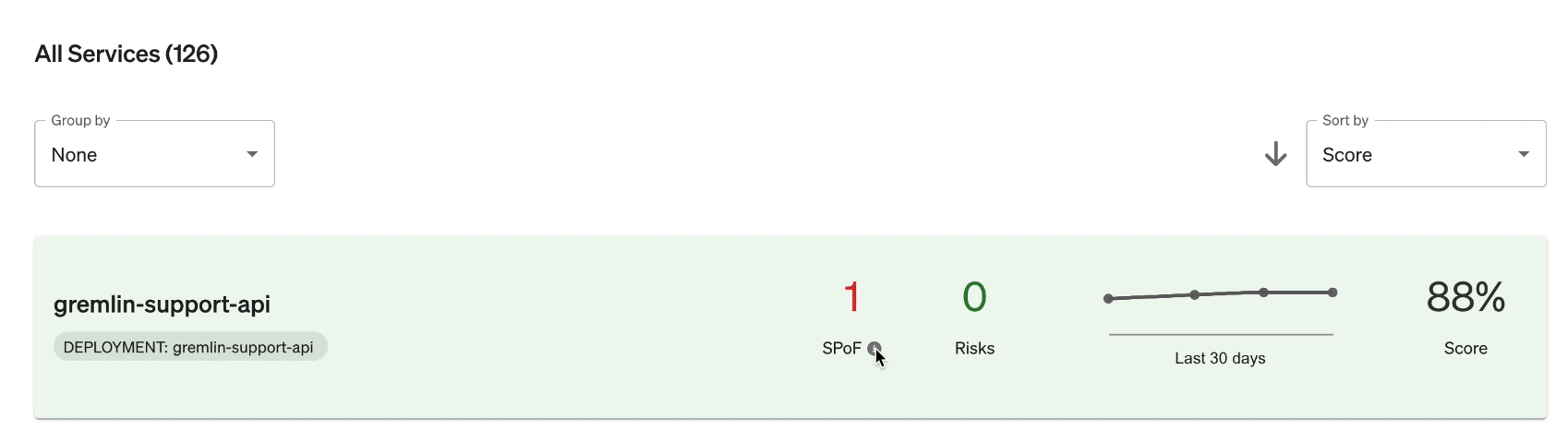
Flagging a dependency as a single point of failure excludes it from running reliability tests (except for Certificate Expiry) when a user clicks the Run All Tests button or sets up Auto Scheduling. You can still run tests on the dependency manually, and the results will still contribute to the service's reliability score. This feature is simply meant to prevent users from accidentally running automated tests on the dependency when it's already known to be a risk. Once the risk is addressed, you can simply uncheck this feature to include the dependency in automatic testing once again.

Marking an existing dependency as a single point of failure
To mark a dependency as a single point of failure:
- Open the Services list in the Gremlin web app, then click on the service containing the dependency you want to flag.
- Scroll down to the Dependencies section of the service's overview page, then click Dependencies to view its dependencies.
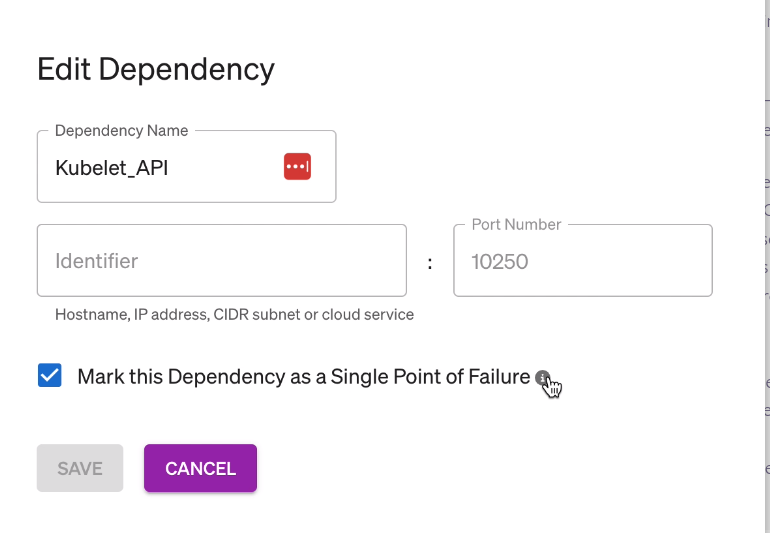
- Click on the gear icon next to the name of the dependency you want to flag, then click Edit. This opens the dependency's settings.
- In the Edit Dependency pane, check the option Mark this Dependency as a Single Point of Failure, then click Save.
Marking a new dependency as a single point of failure
To mark a new dependency as a single point of failure:
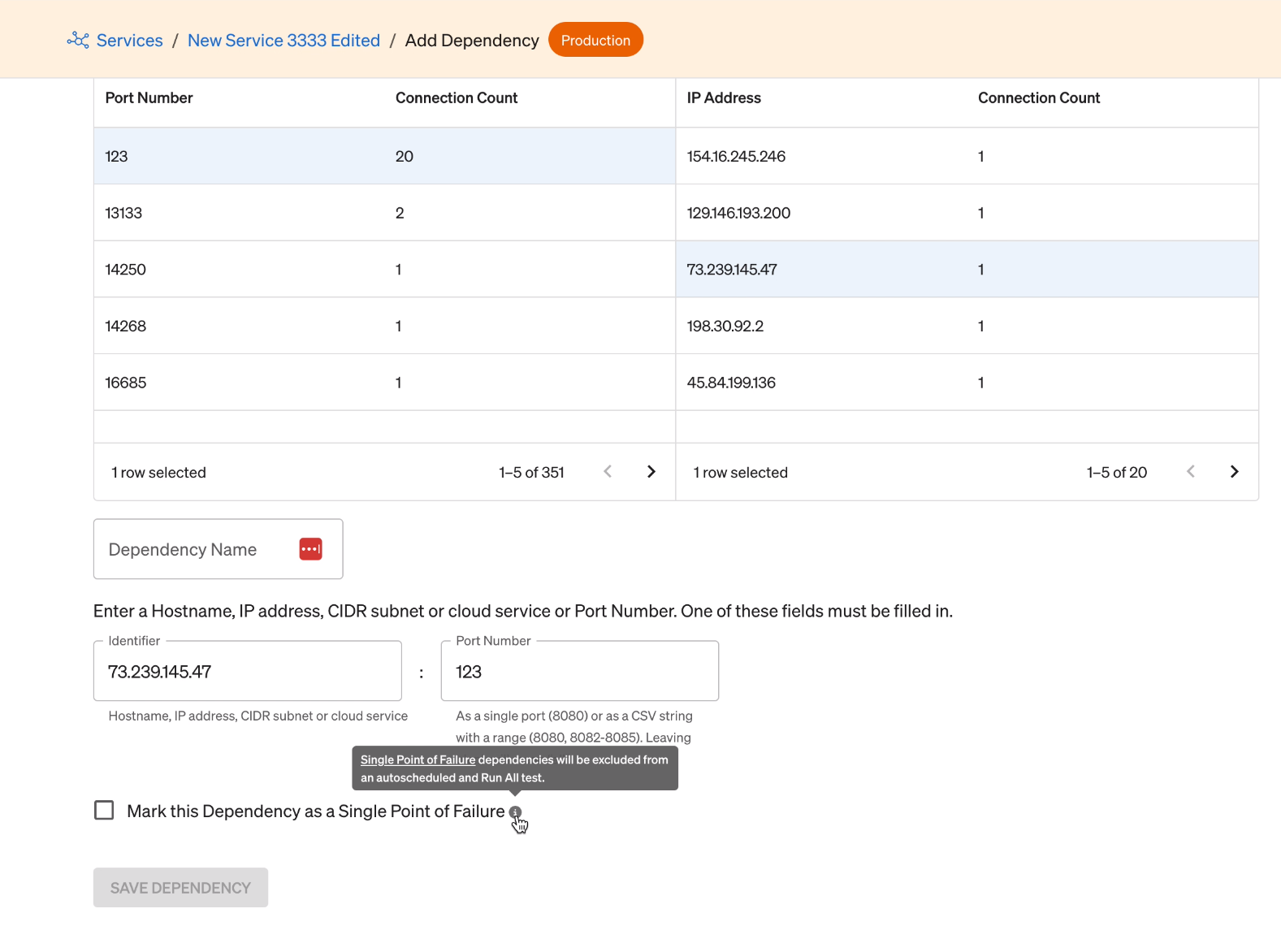
- Follow the instructions in Adding dependencies, but don't click Save yet.
- Check the option Mark this Dependency as a Single Point of Failure.
- Click Save.
How dependency detection works
Gremlin uses DNS and socket data to identify dependencies. The dependency discovery process follows these steps:
- Every 30 seconds, Gremlin monitors packets sent over UDP port 53 (i.e., DNS traffic). The Gremlin agent also polls the host’s (or container’s) socket table every 5 seconds and matches open sockets to DNS network traffic.
- If there’s a match, the agent sends the DNS name, IP address, and port to the Gremlin Control Plane.
- Finally, Gremlin must detect the same dependency on at least two replicas of the service.
If these conditions are met, the dependency will be listed in the service’s Dependencies table and available for testing.
FAQ
Q: How does Gremlin find dependencies?
A: See how dependency detection works. In short, Gremlin observes DNS traffic and compares it to the open sockets on the host (or container). If there’s a match between an open socket and DNS traffic, Gremlin records the DNS name, IP address, and port. Gremlin must detect the same dependency on at least two replicas of the service to make it available for testing.
Q: I have a known dependency on my service, but Gremlin won’t detect it.
A: A dependency might not be listed if your service communicates with it infrequently or if only one instance of your service has connected to the dependency. Try increasing the number of instances of your service to two or more. If the dependency still isn’t being detected, you can add it manually.
If you're using Istio in sidecar mode, add --set gremlin.features.discoverDestinationService.enabled=true to your Helm configuration and restart the Gremlin daemon. You can learn more in our Helm Chart documentation.