8 min read
Scaling Azure Application Gateway for traffic spikes
Fixed-capacity Azure Application Gateways limit your total traffic capacity. Learn how autoscaling works, how to enable it, and how to find gateways without it.

Start your free trial
Gremlin's automated reliability platform empowers you to find and fix availability risks before they impact your users. Start finding hidden risks in your systems with a free 30 day trial.
On this page
It’s 9:02 on Black Friday morning. Marketing sent the promo email two minutes ago, and traffic is climbing fast. Your pods are scaling, your databases are calm, and every backend dashboard is green. Meanwhile, customers are watching their shopping cart and checkout pages spin indefinitely.
The bottleneck sits in front of it all: your Azure Application Gateway is only running a few instances. Someone on the team set a fixed instance count to cut costs, but that was months ago when traffic was low. Today, those same few instances are faced with a rush of Black Friday traffic, and they can’t keep up. Latency is climbing, requests are failing, and customers are getting upset.
The solution is to switch from a fixed-capacity gateway to an autoscaling gateway, and Gremlin automatically flags gateways without autoscaling as a Detected Risk. In this blog, we'll explain how Application Gateway capacity works, why a fixed instance count puts your services at risk, and how to find and fix gateways that don't autoscale.
How Application Gateway measures capacity and load
Application Gateway v2 and Web Application Firewall (WAF) on Application Gateway run pools of instances that Azure manages for you. While you can’t manage individual instances directly, you can control how many Azure creates using one of two scaling modes:
- Manual: you set a fixed instance count between 1 and 125, and the gateway stays at that count, no matter how much traffic arrives.
- Autoscale: you set a minimum instance count (0 to 100) and an optional maximum (up to 125, 10 by default). Azure adds and removes instances as traffic changes.
Azure measures gateway load in capacity units, which combine throughput, compute, and connection count into one metric. Azure counts capacity units by whichever is highest: compute units, persistent connections divided by 2,500, or throughput in Mbps divided by 2.22. Each instance can handle up to 10 capacity units, so a gateway’s capacity is roughly its instance count multiplied by ten.
Why a fixed instance count is a reliability risk
A manually scaled gateway sets a firm limit on capacity. A surge that pushes beyond the gateway’s capacity could result in traffic loss. Even if your team sizes a manual gateway against previous peaks and adds extra capacity as a buffer, unexpected events could push traffic beyond the expected threshold: launching a new product feature, recovering from an incident, Black Friday and Cyber Monday, or an unexpectedly successful marketing campaign, for example. These are the times when scaling becomes critical.
Additionally, because Application Gateway is the entry point to your application, any latency or errors become apparent to users regardless of how healthy your backend services are. Availability drops even if your services are online and responsive. Conversely, when traffic drops below peak levels, having a fixed instance count means you’re paying for capacity you’re not using. An autoscaling gateway will remove instances you’re not using, reducing your overall costs.

How to find Application Gateways with autoscaling disabled
A gateway with a fixed number of instances lacks an autoscaleConfiguration property. You can quickly list these gateways in your Azure subscription using the Azure CLI. This command excludes Basic gateways, which scale on their own.
If you want to search every subscription that you have access to, use Azure Resource Graph. The az graph command requires the resource-graph CLI extension, which the CLI will prompt you to install if it’s not already installed.
Finding fixed-capacity Application Gateways automatically with Gremlin
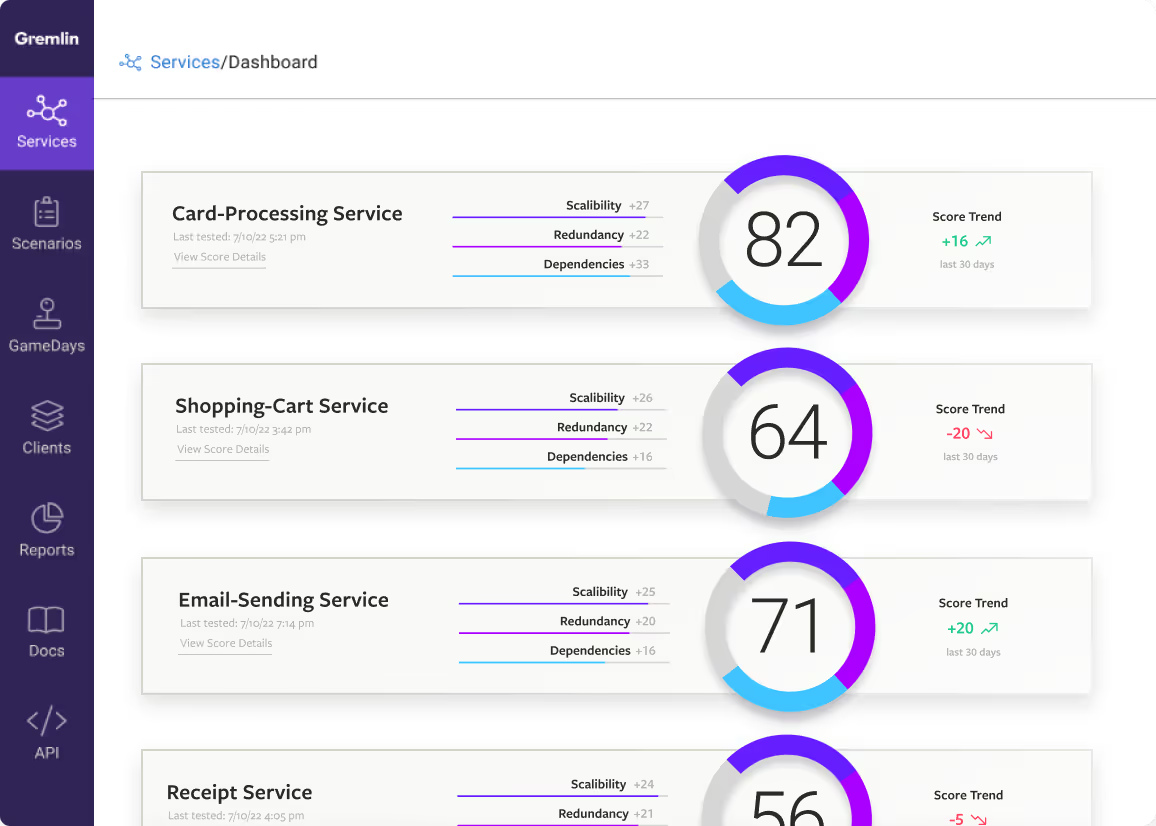
Gremlin automatically monitors for Application Gateways without autoscaling enabled as a built-in Detected Risk. When you map a Gremlin service to an Application Gateway, Gremlin reads the gateway's autoscaleConfiguration property and marks the service at risk if it's null. Gremlin continuously monitors this property, so if an engineer switches a gateway to manual scaling to trim costs, the risk shows up again. Detected Risks factor into the service’s overall reliability score, so this regression will quickly become visible.
How to choose minimum and maximum instance counts
The main consideration when choosing your minimum instance count is the time it takes to scale up. Application Gateway instances take three to five minutes to provision. Meanwhile, your existing instances have to reliably manage the current traffic spike while autoscaling catches up.
- Minimum: start with at least two so you have warm capacity while new instances provision, and increase the amount based on your peak compute unit usage over the past month. Remember that each instance supports at least 10 compute units. For example, if you need 500 compute units at peak (i.e., 50 instances), set your minimum to 25 or 30.
- Maximum: For high-traffic gateways, Microsoft recommends 125, the highest allowed value. If you want to set a lower value to control costs, check the peak value of your Current Capacity Units metric over the past month. Divide this by 10 for an estimate of the number of instances, then add a buffer for unexpected traffic surges, especially before high-traffic periods like Black Friday or Cyber Monday.
- If you need more than 125 instances, you can use Azure Traffic Manager or Azure Front Door to route to multiple Application Gateways.
- Subnet size: every instance takes a private IP from the gateway's subnet, so the subnet needs room for your maximum. Microsoft recommends a /24 subnet for v2 gateways.
- Alerts: Microsoft recommends setting alerts that fire when capacity units cross 75% of your peak usage from the last month. That gives you time to raise the minimum before traffic outruns it.
How to enable autoscaling on Azure Application Gateway
Now that you have your minimum and maximum instance count, the next step is to enable and configure your gateway. You can switch a gateway from manual scaling to autoscaling on the fly without having to redeploy it. You can find instructions below for changing it via the Azure portal, Azure CLI, Bicep, or Terraform.
These examples use a minimum count of 2 and a maximum of 10. Replace these with your own values.
In the Azure portal
- Open your Application Gateway and select Settings > Configuration.
- Change Capacity type from Manual to Autoscale.
- Enter the minimum and maximum instance counts (see the previous section for tips on how to choose these).
- Click Save.
With the Azure CLI
Confirm the change by querying the gateway's autoscale settings:
Your results should match your capacity choices:
With Bicep
Add an autoscaleConfiguration block to the gateway's properties, then remove capacity from the sku block:
With Terraform
In your azurerm_application_gateway resource, add an autoscale_configuration block, then set min_capacity and max_capacity. As with Bicep, drop capacity from the sku block:
After you deploy your change, check Gremlin. Refresh the service page, and the Azure autoscaling Detected Risk will show as Mitigated.
Other Application Gateway risks to watch for
Autoscaling is one of three Azure Application Gateway risks that Gremlin automatically detects. The others are:
- No AZ redundancy, which flags gateways deployed to fewer than two availability zones. A gateway that can scale to 125 instances can still fail if its availability zone goes offline.
- SSL certificate expiring soon, which flags TLS certificates that expire within 30 days and aren't managed through Key Vault.
Even if you manage your Azure infrastructure as code using Bicep or Terraform, environments can drift: an engineer might ship a new gateway using an old template, set manual instances for more predictable costs, or manually adjust capacity during an incident. Gremlin monitors for and flags these changes so you can fix them before your next traffic spike.
If you want to monitor for these and other common misconfigurations, Gremlin's Detected Risks automatically scans your services and highlights reliability issues. Get started with a free 30-day trial, or see how it works in our self-guided product tour.
Keep reading







Avoid downtime. Use Gremlin to turn failure into resilience.
Gremlin empowers you to proactively root out failure before it causes downtime. See how you can harness chaos to build resilient systems by requesting a demo of Gremlin.