11 min read
How to catch expiring TLS certificates on Azure Application Gateway
An expired Azure Application Gateway certificate takes your site offline. Learn how to find expiring certificates and have Key Vault renew them.

Start your free trial
Gremlin's automated reliability platform empowers you to find and fix availability risks before they impact your users. Start finding hidden risks in your systems with a free 30 day trial.
On this page
It’s a situation that sneaks up on every organization at least once: your systems are humming along when, all of a sudden, web traffic plummets. Your containers are healthy and responsive, the database is quiet, and every backend dashboard is green, but nobody can load the site. What’s going on?
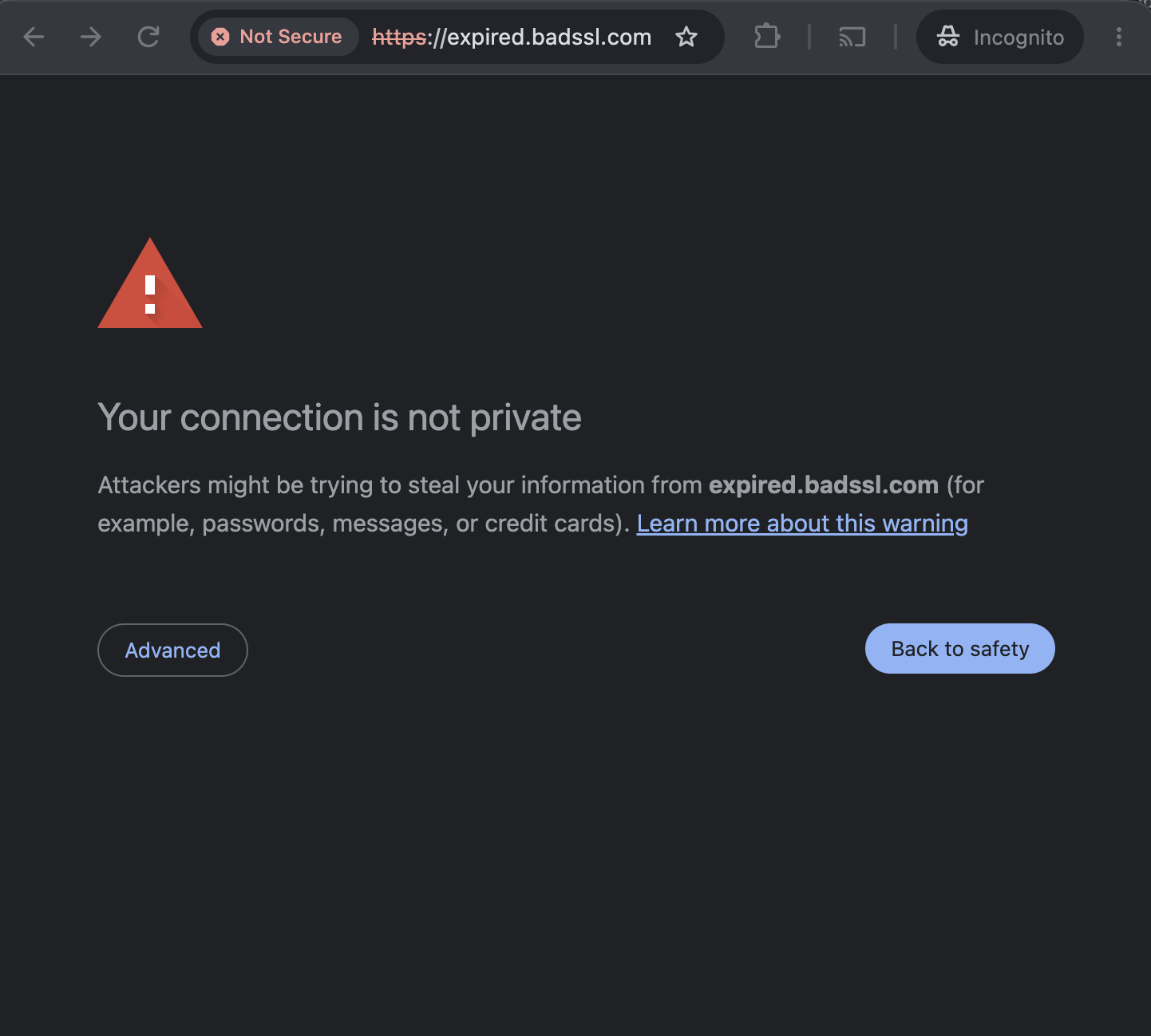
Renewing TLS certificates is one of those tasks that isn’t difficult to perform or automate, but has a huge impact when it isn’t done correctly. This is especially true when your services lie behind a gateway, like Azure Application Gateway. If the TLS certificate on your application gateway expires, customers trying to access your site will instead be greeted with a browser error:
In this blog, we’ll explain how Azure Application Gateway handles TLS certificates, why expiring certificates are a growing reliability risk, and how to find and fix them before your customers do.
How Azure Application Gateway handles TLS certificates
Azure Application Gateway allows you to create multiple HTTPS listeners, each with its own TLS certificate. This is analogous to using a TLS certificate on a web server like NGINX: the TLS certificate secures connections between customers and the gateway, while traffic between the gateway and backend services can be secured with a different certificate (or sent over plain HTTP).
Application Gateway supports two methods of storing a TLS certificate:
- Uploaded to the gateway: you can upload a password-protected PFX file directly to the gateway. The certificate lives in the gateway’s configuration, and nothing renews or replaces it until someone uploads a new one.
- Referenced from Key Vault: the certificate is stored in Azure Key Vault, and Application Gateway uses a managed identity to fetch the certificate. Gateway instances poll Key Vault every four hours and pick up new versions automatically.
Manually uploading a certificate is the fastest way to get HTTPS working, but it’s also the option most likely to fail. An uploaded certificate has no owner, no renewal policy, and by default, no alerting mechanism. Renewing and replacing the certificate has to be done by an engineer before the certificate expires, or you risk customers losing access to your site.
With Key Vault, Azure automatically renews certificates that are issued by integrated certificate authorities (CAs). As of this blog post, these are DigiCert and GlobalSign. Application Gateway polls Key Vault for new certificates every four hours and automatically rotates old certificates with newer versions with no manual intervention required. This process also works for self-signed certificates.
Why an expiring certificate is a reliability risk
Expired certificates don’t impact your service directly, but they do prevent your customers from accessing your services. When a browser detects an expired certificate, it blocks the page behind a security warning that most users won’t click through. API clients, mobile apps, and service-to-service callers will also refuse to connect by default. Your backend can be perfectly healthy, yet every client will treat it as insecure. And because Application Gateway is the entry point to the services behind it, a single certificate that is one second past its expiration date can block access to every service on that listener.
The impact adds up. In DigiCert’s 2026 Certificate Management Outlook, more than a third of organizations reported a service outage caused by an expired certificate in the past year. Nearly three-quarters reported at least five hours of certificate-related downtime, one in five reported 25 hours or more, and nearly one in four said their most significant certificate incident cost more than $250,000.
Expired certificates are one of the most common causes of outages for a simple reason: renewal is an infrequent task that’s easy to forget. Maybe the certificate was uploaded to the gateway by hand, and the task to automate the process got pushed out due to other priorities. Maybe the renewal reminder went to the inbox of an engineer who’s no longer with the company, or bounced due to a typo in the target email address. No matter the cause, the result is the same. And with upcoming changes to TLS renewal practices, certificate expirations are about to become a lot more frequent.
In April 2025, the CA/Browser Forum approved Ballot SC-081v3, which shortens the maximum lifetime of public TLS certificates in three stages:
| Certificates issued from | Maximum validity |
|---|---|
| March 15, 2026 | 200 days |
| March 15, 2027 | 100 days |
| March 15, 2029 | 47 days |
The first 200-day certificates issued in March 2026 started expiring in October. If your team renews gateway certificates by hand once a year, you’ll be doing it twice as often now, three to four times as often in 2027, and roughly every six weeks by 2029. Volume makes this harder: more than half of the organizations in DigiCert’s survey manage over 1,000 certificates, and DigiCert estimates that 1,000 public certificates will mean roughly 8,000 issuances a year once the 47-day limit takes effect.
How to find expiring certificates on your Application Gateways
There’s no easy, direct way to view all expiring certificates in your gateways at once. However, you can use the Azure portal to view each HTTPS listener’s certificate expiration date, use the Azure CLI, or use Gremlin to monitor them automatically.
Finding expiring certificates using the Azure portal
In the Azure portal, navigate to your Application Gateway, select Listeners, then select the Listener SSL certificates tab. The list shows every certificate on the gateway, along with its type, associated listeners, and expiration date as shown in the Expiry field. You'll need to repeat this for each Application Gateway you want to check.
For more information, see TLS certificates management for listeners.
Finding expiring certificates using the Azure CLI
The following commands will print the expiration date for each certificate in the Application Gateway specified. The Azure CLI returns each certificate as a base64-encoded publicCertData field, which you will need to decode using openssl. This script also uses jq to parse the JSON response from Azure (replace AppGatewayName and ResourceGroupName with the names of your Application Gateway and resource group, respectively):
Certificates hosted in Key Vault may return null for publicCertData, and this script will output a warning if it can’t find an expiration date. You can still view Key Vault certificates using a different Azure CLI command (replace VaultName with the actual name of your vault):
Finding expiring certificates automatically with Gremlin
A script can be brittle, provides limited information, and is only a point-in-time snapshot of what’s expiring. Unless you automate and maintain this script, you’ll end up right back at square one.
With Gremlin, this process is automated for you. When you map a Gremlin service to an Application Gateway, Gremlin reads the gateway’s sslCertificates.publicCertData, decodes it, and checks the certificate’s notAfter date. If the certificate expires within 30 days, Gremlin marks the service at risk. If the gateway pulls its certificate from Key Vault, Gremlin treats the risk as mitigated, since Key Vault handles rotation. Detected Risks factor into each service’s reliability score, so an expiring certificate shows up on the same dashboard your team already uses to prioritize work. They also catch regressions that one-time audits can miss, like a gateway rebuilt from an old template with an uploaded certificate.
This Detected Risk covers the certificate your gateway presents to clients. Gremlin can also monitor certificates of the services your application makes calls to via the Certificate Expiry test. Running this test checks each service’s network dependencies, pulls their complete certificate chain, and fails if any expire within 30 days. This lets you get ahead of dependency outages, giving you time to implement alternative routes, circuit breakers, or alerts.
How to fix expiring Application Gateway certificates
There are two ways to fix expiring (or expired) certificates: manually renew and re-upload the certificate, or switch to a certificate issued through Key Vault and let Key Vault maintain it. Manual renewal is the quick fix, but moving to Key Vault fixes the problem for good and is the approach Microsoft recommends. Few teams have made that switch yet: only 10% of organizations in DigiCert’s survey said they already have certificate automation in place.
Quick fix: renew the uploaded certificate
In the Azure portal, open your gateway, select Listeners, choose the listener with the expiring certificate, and select Renew or edit selected certificate. Upload your new certificate’s PFX file, enter its password, and click Save.
Alternatively, using the Azure CLI:
Long-term fix: issue the certificate from Key Vault
When Key Vault issues a certificate, it can also renew it. You give the certificate a policy that says which certificate authority (CA) to use and when to renew. Before the certificate expires, Key Vault requests a new version from the CA, and Application Gateway picks it up on its next check, within four hours, without interrupting service.
Before you start, make sure your gateway uses Application Gateway v2. For a public-facing site, you also need an account with DigiCert or GlobalSign, the two CAs that integrate with Key Vault, and your organization must already be validated in that account. Your own Azure account needs permission to manage certificates in the vault, such as the Key Vault Certificates Officer role.
Public TLS certificates now last at most 200 days, and this will drop to 100 days in March 2027. Set Key Vault to renew at least 45 days before expiry. That gives your CA time to issue the new version, and gives your team time to react if a renewal fails.
In the Azure portal
- Connect Azure to your certificate authority (CA). Open your key vault and select Certificates > Certificate Authorities > Add. Choose DigiCert or GlobalSign, then enter your account ID, API key or password, and organization ID. You only need to do this once per vault.
- Create the certificate. Select Certificates > Generate/Import, and set Method of Certificate Creation to Generate. Enter a name, choose the CA you connected to, then enter the subject (for example,
CN=www.example.com) and any additional DNS names managed by the certificate. Set Content Type to PKCS #12, and leave the private key exportable. Set the lifetime action to renew automatically at least 45 days before expiry, then click Create. The certificate appears in the vault once the CA issues it. - Create a user-assigned managed identity, then give it the Key Vault Secrets User role on your vault. If your vault uses access policies instead of Azure RBAC, grant the identity Get permission on secrets.
- Open your gateway, select Listeners, and choose the HTTPS listener.
- Under Choose a certificate, select Choose a certificate from Key Vault.
- Enter the name of the certificate, then select your managed identity, key vault, and certificate.
- Click Save.
With the Azure CLI
These commands use the following placeholder values. Make sure to replace these with your own:
my-rg: the name of the resource group containing your gateway.my-appgw: the name of your Application Gateway.my-vault: the name of the Key Vault where your certificate is issued.my-cert: the name of your Key Vault-managed TLS certificate.www.example.com: the domain that your certificate is issued for.
First, register your CA with the vault. Key Vault needs your CA account details before it can request certificates for you. This example uses DigiCert; for GlobalSign, set --provider-name GlobalSign and use your GlobalSign account details.
Next, define the certificate policy. The policy names the issuer, the domains the certificate covers, and when Key Vault should renew it. Change the placeholder values, set certificateType to the product type in your CA account, such as OV-SSL, then save the file as policy.json.
Create the certificate. Key Vault generates a key pair and sends the signing request to your CA using the policy.
The create command returns while the CA is still processing the request. To check whether the CA has finished, run the following command until the status is completed. You can use a tool like watch to automatically repeat this command:
While the certificate is being issued, create a managed identity for the gateway. Application Gateway uses this identity to read the certificate from Key Vault.
Assign the Key Vault Secrets User role to the new identity to let the identity read from the vault. If your vault uses access policies instead of Azure RBAC, grant the identity Get permission on secrets.
Assign the identity to your Application Gateway:
Last, point the gateway’s certificate at Key Vault. Enter a secret ID without a version, as shown below. A versioned ID would pin the gateway to one specific certificate, which prevents it from detecting renewals.
With Bicep
Bicep can’t issue a Key Vault certificate, because issuing one is a Key Vault operation rather than an Azure Resource Manager resource. Issue the certificate with the Azure CLI or the portal first, then add a user-assigned identity to the gateway and point the certificate at its versionless secret ID:
With Terraform
Terraform can handle the whole process: register the issuer, issue the certificate with a renewal policy, and connect the gateway. In your azurerm_application_gateway resource, add an identity block and set key_vault_secret_id on the ssl_certificate block. The versionless_secret_id attribute of azurerm_key_vault_certificate gives you the right format:
Get notified if a renewal fails
The policy you created already tells Key Vault to renew the certificate automatically. If a renewal fails, Key Vault emails the vault’s certificate contacts and asks for a manual renewal, so add contacts to your vault. Use a shared team address rather than an individual’s, so the warning still reaches someone when people change roles.
Confirm the fix in Gremlin
After you deploy your change, refresh the service page in Gremlin. The SSL certificate expiring soon risk will show as Mitigated. Gremlin keeps checking after the risk is mitigated, so if the Key Vault reference is later swapped for an uploaded certificate, the risk comes back and lowers your service’s reliability score. For Key Vault-backed certificates, Gremlin marks the risk as Mitigated.
Other Application Gateway risks to watch for
Expiring certificates are one of three Azure Application Gateway risks that Gremlin detects automatically. The others are:
- No AZ redundancy, which flags gateways deployed to fewer than two availability zones. A gateway with a fresh certificate still goes offline if its only zone fails. See How to verify your Azure Application Gateway is zone-redundant.
- Autoscaling missing, which flags gateways with a fixed instance count. See Scaling Azure Application Gateway for traffic spikes.
Certificate lifetimes will keep shrinking through 2029, and every manual renewal is another chance for one to slip. Gremlin watches every mapped gateway, so you hear about an expiring certificate 30 days out instead of from your customers.
If you want to monitor for these and other common misconfigurations, Gremlin’s Detected Risks automatically scans your services and highlights reliability issues. Get started with a free 30-day trial, or see how it works in our self-guided product tour.
Keep reading






Avoid downtime. Use Gremlin to turn failure into resilience.
Gremlin empowers you to proactively root out failure before it causes downtime. See how you can harness chaos to build resilient systems by requesting a demo of Gremlin.