
How to test application resiliency by simulating the Cloudflare December 2025 outage
This fall and winter have had their share of major outages (including AWS, Azure, and Cloudflare), and December was no exception. On December 5, 2025, Cloudflare suffered a 25-minute outage that served responses with HTTP 500 errors to about 28% of HTTP traffic served by Cloudflare. Since Cloudflare handles an average of 81 million HTTP requests per second, this represents a substantial chunk of internet traffic, including LinkedIn, Zoom, and Downdetector.
As with most major outages, once the dust settles, engineering teams immediately get asked why their systems weren’t resilient and what they’re doing to improve resilience. Unfortunately, if they’re not using reliability tests, then they can’t answer that question with any degree of confidence.
The only way to know for sure how your system will respond when a key service like Cloudflare returns 500 errors is to safely and securely recreate the failure in a controlled way with reliability tests.
Let’s look at how you can do that with Gremlin’s Failure Flags.
Why inject fault at the application level?
It’s always important to match the right test to the right layer of your stack. Say you want to test how your system responds to a cloud provider region being unavailable. In this case, you’d want to choose a Blackhole Fault Injection experiment, which cuts off all network traffic between your service and a specific region, dependency, or similar resource.
But a 500 error code doesn’t occur on the network layer. It occurs on the application layer. On the OSI model, these correspond to layer 3 and layer 7, two very different parts of the networking stack. Failure Flags is designed to run tests in those higher layers, letting you narrow the scope of your testing down to individual requests.
How to simulate a 500 error code
First, you’ll need to install the Failure Flags agent and SDK. If you haven’t, then head over to the Gremlin docs to see how to deploy it. The Failure Flags SDK supports applications written in Golang, Node.js, Python, .NET (C#), and JavaScript. You can deploy the agent alongside your application on almost any platform, including Kubernetes, AWS Lambda, and Istio. (If you’re not already a Gremlin customer, you can also sign up for a free 30-day trial.)
When instrumenting your code with Failure Flags, add the flag to the spots in your code where you process your response, but before you send it. You’ll need to pass the variable containing your response to the flag’s dataPrototype attribute. For an example, see our documentation on changing service data. You can find more examples in our GitHub repo. Give this flag a name, like “response.”
Once you’ve deployed the agent and SDK, and instrumented your code, follow these steps:
- Navigate to Failure Flags within Gremlin.
- Create a new experiment using the “+ Experiment” button.
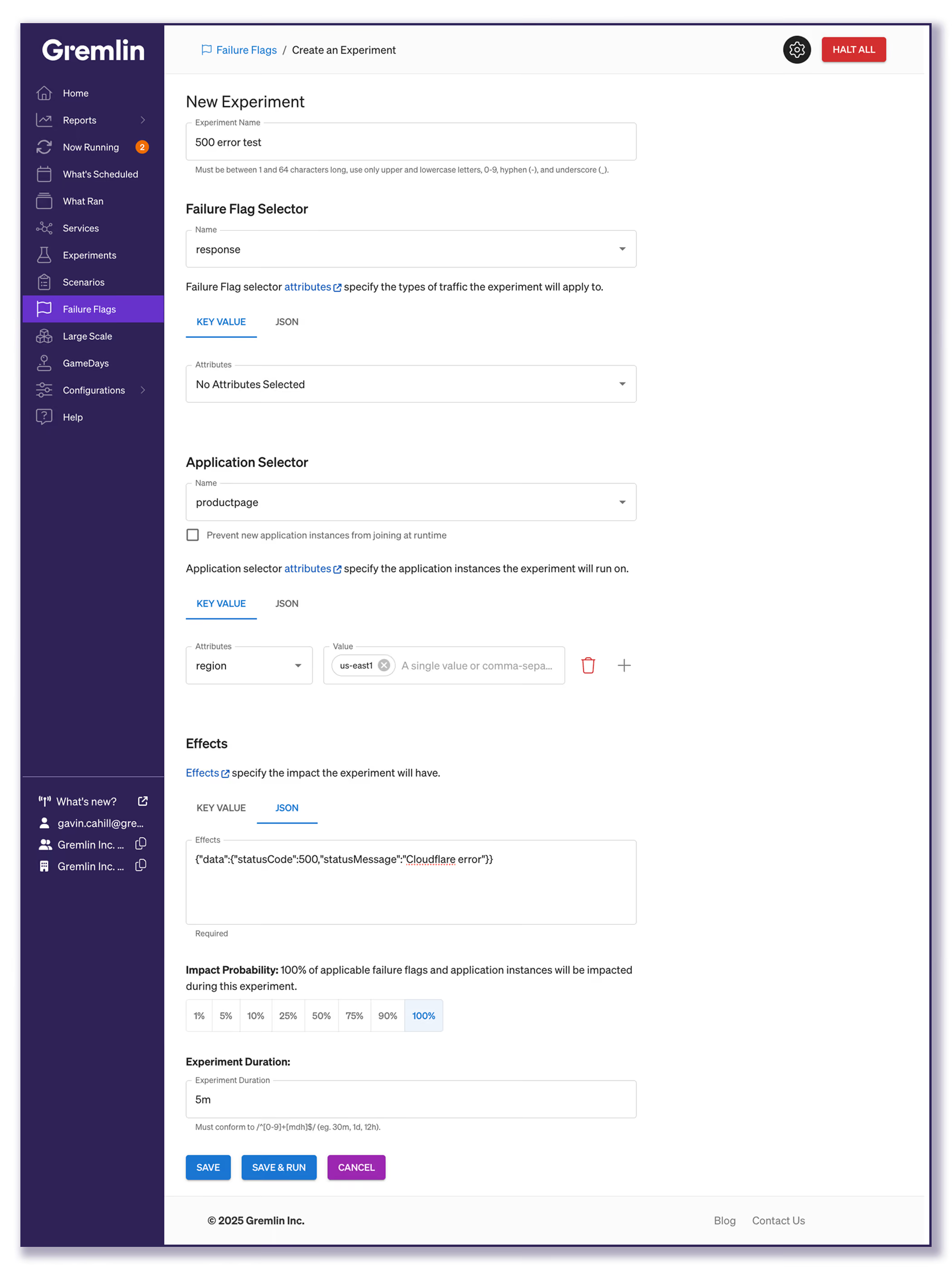
- Give the experiment a name, like “500 error code test.”
- Under Failure Flag Selector, select the Failure Flag you created when instrumenting your code.
- Select the “response” Failure Flag (or the name you gave it).
- Make sure the Attributes field under “Key Value” is set to “No Attributes Selected”. This ensures the experiment impacts all instances of this flag.
- The Application Selector specifies which application you’re targeting with the experiment, and allows you to narrow which instances of that application run the experiment.
- Select the application/service you’re testing. (“productpage” in the example)
- To impact only certain instances, set targeting attributes under “Key Value”. For example, if you have an attribute called “region”, you could enter “us-east-1” to only impact instances running in that region.
- Now to configure the experiment, which is called the Effect. You can modify request data in real-time by changing the attributes of the
dataobject. This corresponds to thedataPrototypeattribute containing your response variable. For example, if our response stores its HTTP response code in an attribute calledstatusCodeand a message instatusMessage, we can create 500 errors by selecting the JSON tab and entering:{
"data": {
"statusCode": 500,
"statusMessage": "Cloudflare error"
}
} - The Impact Probability allows you to tailor the severity of the outage by choosing the percentage of requests that it will impact. In this case, you’ll probably want to choose 100% to impact all requests, but you could also choose 25% if you want to simulate the same 28% of the Cloudflare outage.
- Finally, choose the duration of the experiment, then Save & Run!
While the test is running, keep an eye on your application’s key metrics, especially its throughput and error rate.
Congratulations, you’ve simulated the outage! Now what?
After the experiment, compare the result of the test to your expectations. Did the other services in your application handle the errors gracefully? Did your load balancer re-route traffic to instances that were not returning 500 errors? If so, that’s fantastic. Now you can rest easy knowing that your application can handle a similar outage, and you have the test results to prove that resilience.
Did your application fail? This is also helpful, because now you have the chance to dig in and address this problem before there’s an actual outage that could impact users.
The important part of this experiment is that you’ve removed a blind spot for how your system responds to high-impact outages. Instead of hoping, guessing, or assuming that your application will react, you know exactly what’s going to happen. And now you and your team can take informed, data-driven action to improve your reliability.
Schedule a demo to see Failure Flags in action for yourself!
Ready to learn more?
See Gremlin in action with our fully interactive, self-guided product tours.
Take the tour
How a major retailer tested critical serverless systems with Failure Flags
Find out how Gremlin helped a major retailer test region failover for a critical service built on AWS Lambda using Failure Flags.

Find out how Gremlin helped a major retailer test region failover for a critical service built on AWS Lambda using Failure Flags.
Read more